
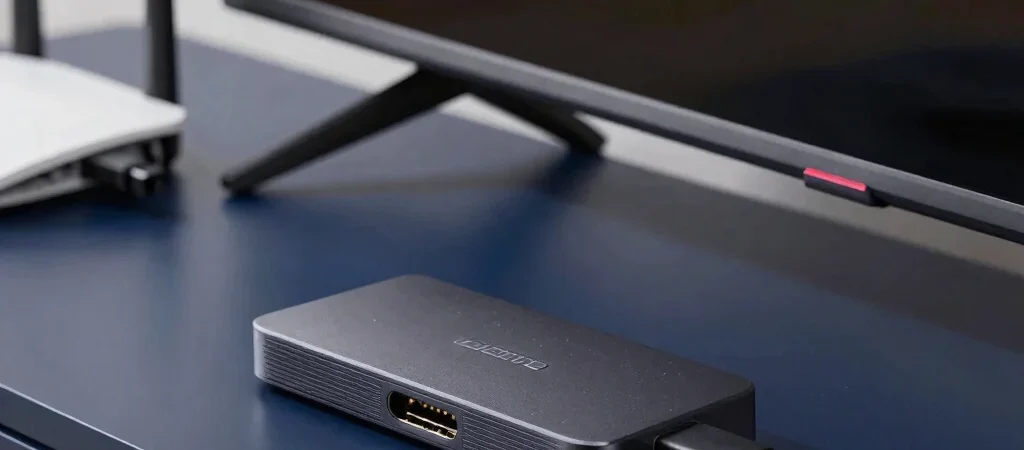
A show that pauses every few minutes can make the whole TV setup seem broken. Before resetting your streaming stick, check whether the problem follows one app or affects everything you watch; that simple distinction can save time and preserve your settings.
Find where the problem starts
Try a different streaming app, then play a video on another device connected to the same Wi-Fi network. If only one app buffers, close and reopen it, check for an available update, and restart the stick. If several apps stall on the TV while other devices work normally, focus on the stick’s connection and power.
Check power and placement
A stick powered from a TV’s USB port may behave differently from one using the power adapter recommended by its manufacturer. Check that its power cable is seated firmly, and consult the device instructions before changing how it is powered. If the stick is tucked behind a TV or cabinet, moving it away from crowded cables and obstructions can also help with wireless reception.
Work through the Wi-Fi
Restart the router and streaming device, then test playback again. If the router is in another room, try moving it to a more open spot or temporarily bringing the TV setup closer to it; thick walls and distance can affect a wireless signal. Save a factory reset for later, after you have checked the network, power, and app.